Looking to learn how to add M3U playlist to IPTV Smarters Pro? You’re in the right place. IPTV Smarters Pro is one of the most popular IPTV apps that allows users to stream live TV, movies, and series using an M3U playlist.
In this guide, we will show you exactly how to add M3U playlist to IPTV Smarters Pro step by step. Whether you are using a Smart TV, Firestick, Android, or iPhone, this simple guide will help you set up your IPTV service quickly and start streaming without any issues.
Key Takeaways
- IPTV Smarters Pro allows you to stream content using an M3U playlist
- Adding an M3U playlist is simple and takes only a few minutes
- You can use either an M3U URL or file upload method
- Works on Smart TVs, Firestick, Android, and iOS devices
- A stable internet connection ensures smooth streaming
What is an M3U Playlist in IPTV Smarters Pro?
An M3U playlist is a file or URL that contains a list of IPTV channels, movies, and series provided by your IPTV service. It allows IPTV Smarters Pro to load and display all available content in one place.
When you add an M3U playlist to IPTV Smarters Pro, the app reads the playlist and organizes channels into categories like Live TV, Movies, and Series. This makes it easy to browse and stream your favorite content.
Most IPTV providers give you an M3U URL or file after purchasing a subscription, which you can use to log in and start watching instantly.
How to Add M3U Playlist to IPTV Smarters Pro
Add M3U Playlist via URL
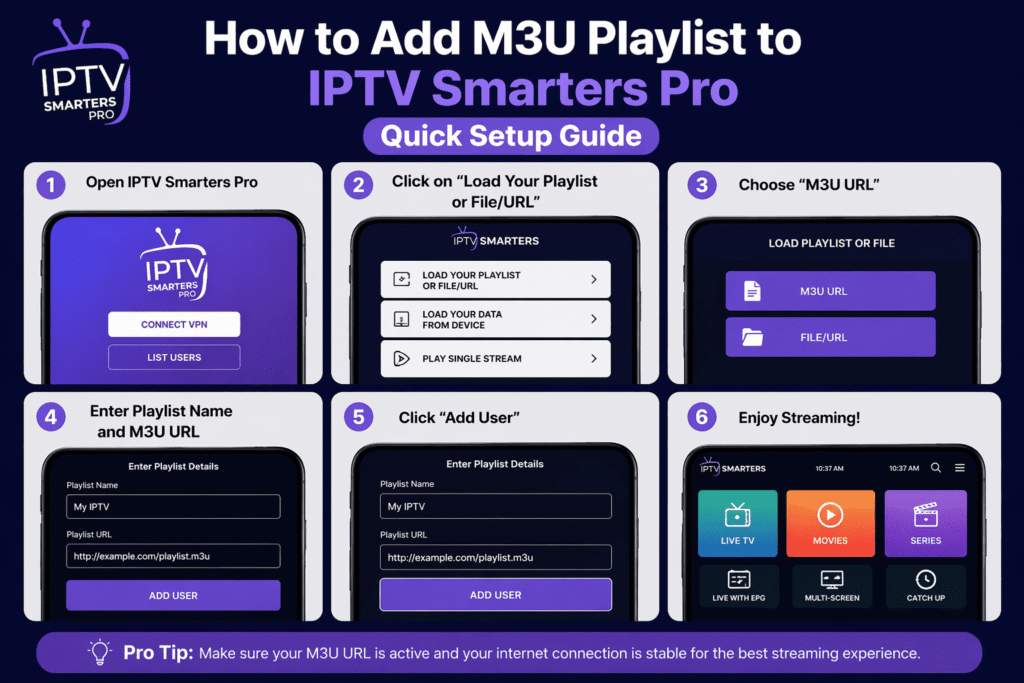
Follow these steps to add M3U playlist to IPTV Smarters Pro using an M3U URL:
- Open IPTV Smarters Pro on your device
- Accept the terms and conditions
- Select “Load Your Playlist or File/URL”
- Choose “M3U URL”
- Enter a name for your playlist
- Paste your M3U URL provided by your IPTV service
- Click “Add User”
- Wait for the channels to load
Once done, you will see Live TV, Movies, and Series categories ready to stream.
Add M3U Playlist via File Upload
You can also add an M3U playlist file to IPTV Smarters Pro by following these steps:
- Open IPTV Smarters Pro
- Select “Load Your Playlist or File/URL”
- Choose “File/URL”
- Upload your M3U file from your device
- Enter a playlist name
- Click “Add User”
The app will automatically load all channels and content from your playlist.
You can check your internet speed using Speedtest by Ookla.
Common Problems When Adding M3U Playlist to IPTV Smarters Pro
Sometimes users face issues when trying to add M3U playlist to IPTV Smarters Pro. Here are the most common problems and how to fix them:
- Invalid M3U URL – Make sure the URL is correct and provided by your IPTV service
- Channels not loading – Check your internet connection and restart the app
- Login failed – Verify your playlist details and try again
- Slow loading or buffering – Use a stable internet connection or VPN
Fixing these issues will help you successfully add M3U playlist to IPTV Smarters Pro without interruptions.
If you are new to IPTV, check our guide on How to Use IPTV Smarters Pro.
Tips for Better IPTV Streaming Experience
To get the best experience after you add M3U playlist to IPTV Smarters Pro, follow these tips:
- Use a high-speed internet connection (at least 15 Mbps for HD)
- Restart your device regularly
- Keep IPTV Smarters Pro updated
- Avoid using too many apps at the same time
- Choose a reliable IPTV provider
These simple tips will improve performance and reduce buffering while streaming.
Conclusion
Learning how to add M3U playlist to IPTV Smarters Pro is simple and only takes a few minutes. By following the steps in this guide, you can quickly set up your IPTV service and start streaming live TV, movies, and series without any issues.
Whether you use an M3U URL or file upload, IPTV Smarters Pro makes the process easy and user-friendly. With the right setup and a stable internet connection, you can enjoy a smooth and high-quality streaming experience anytime.
FAQ – Add M3U Playlist to IPTV Smarters Pro
How do I add M3U playlist to IPTV Smarters Pro?
You can add M3U playlist to IPTV Smarters Pro by selecting “Load Your Playlist or File/URL”, choosing M3U URL, and entering your playlist details.
Why is my M3U playlist not working in IPTV Smarters Pro?
Your M3U playlist may not work if the URL is incorrect, expired, or your internet connection is unstable.
Can I use IPTV Smarters Pro for free?
Yes, IPTV Smarters Pro is free to download, but you need an IPTV subscription to access content.
What devices support IPTV Smarters Pro?
IPTV Smarters Pro works on Smart TVs, Firestick, Android, iOS, Windows, and Mac devices.